A lightweight, compact launcher for Microsoft 365 apps and admin portals.
Speed up your access to Microsoft 365. Minimise open tabs, switch between apps and admin portals in one click, with full dark mode support.
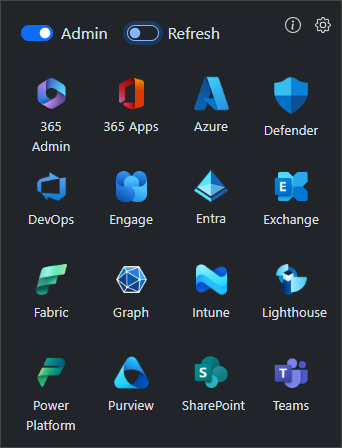
A streamlined launcher purpose-built for Microsoft 365 power users and admins.
Quickly open any Microsoft 365 app or admin portal directly from your toolbar.
Finds and focuses existing open tabs rather than creating new ones, keeping your browser tidy.
Choose between Individual, New, or Single tab modes to suit your workflow.
Full dark mode support. Use your system preference or override it manually.
Toggle instantly to M365 admin centres — perfect for IT admins managing multiple tenants.
Install in separate browser profiles to manage different M365 tenants or accounts independently.
Follow these simple steps to install and configure 365 Launcher X.
Add the extension from the Chrome Web Store or Edge Add-ons. Works on both browsers.
Click the puzzle icon in your browser toolbar, then click the pin icon next to 365 Launcher X.
Click the extension icon to open the launcher. Select any M365 app. Click Admin to switch to admin portals.
Open Settings to choose your preferred tab mode and dark mode preference.
Open the Settings icon inside the launcher to switch between the three tab modes.
The default mode. Instead of opening a new tab every time, the launcher finds any existing tab for that app and switches to it. For example, if you already have OneDrive open, it will focus that tab rather than creating a duplicate.
Opens a brand new tab every time you click an app or admin portal. Use this if you prefer to keep multiple instances of the same app open simultaneously.
Every app and admin centre opens in the same single tab. The tab is reused each time, so you only ever have one launcher tab open at a time. Great for minimal tab setups.
The Refresh toggle forces a full page reload when switching to an existing tab. This is useful when you want to return to the home/root page of an app rather than continuing where the tab left off.
Yes. Install 365 Launcher X in each browser profile separately. This is the recommended approach for managing multiple M365 tenants or accounts — add a different profile image to each so you can tell them apart at a glance.
Install 365 Launcher X for free and get instant access to all your M365 apps and admin portals from one compact launcher.

